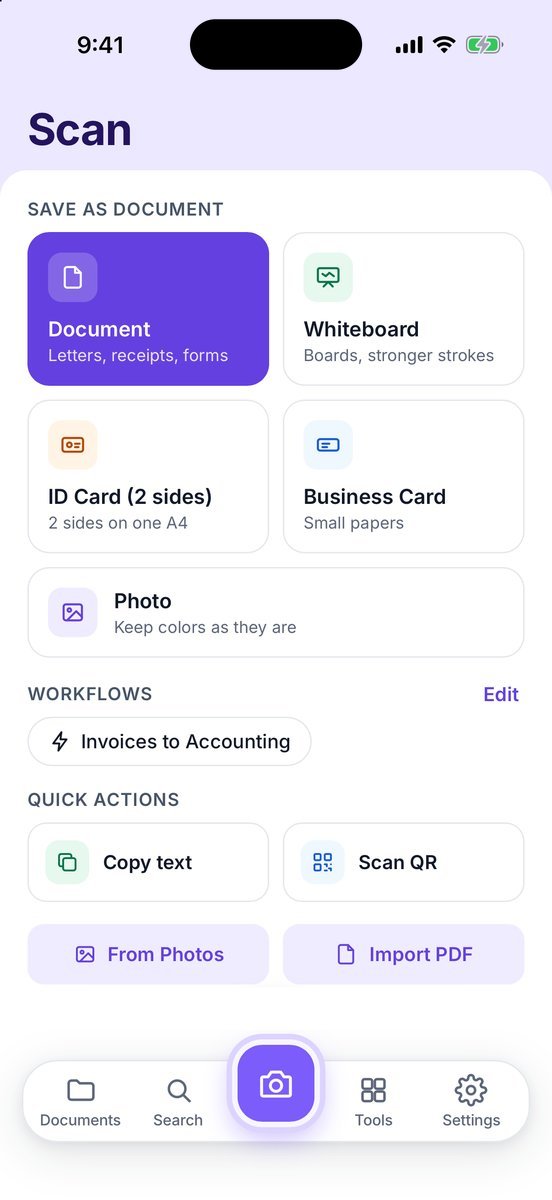
 Zency Scan
- Open Scan
Tap Scan in the tab bar.
- Tap a mode
Document — letters, receipts, forms. Whiteboard — boards, with stronger strokes. ID Card (2 sides) — both sides on one A4 page. Business Card — small papers. Photo — keeps colors as they are. The camera opens straight away.
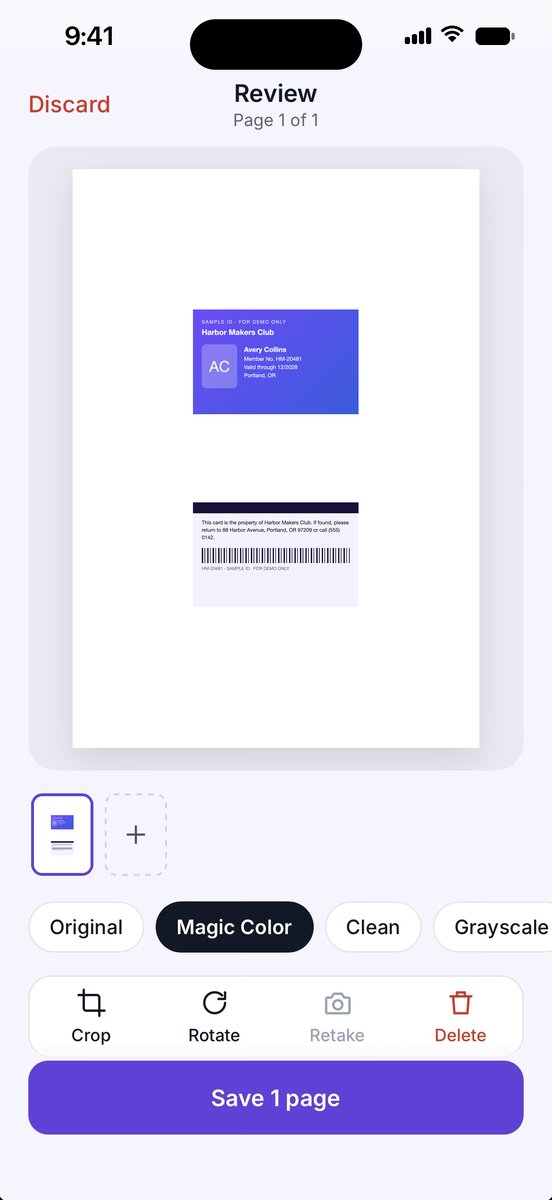
- ID cards: front, then back
Step 1 of 2: scan the front. When you see Front scanned, flip the card — Step 2 of 2: scan the back. Both sides land on one A4 page at real card size, ready to print. Redo front lets you try again.
- Review and save
Pick a filter and save, as with any scan.
More screens
Tips
- Need just the text, without keeping a scan? Use Copy text under Quick actions. Scan QR reads a QR code.
- Photo mode only offers the Original, Clean and Grayscale filters, to keep colors natural.
- Sending an ID card? Consider redacting the number first.
Free or Pro? This is free, with no watermark and no page limit.
See it in a real situation: Renting an apartment? Put your rental application together on your phone.