 Zency Scan
- Open Scan
Tap the round Scan button in the middle of the tab bar, then Document under Save as document.
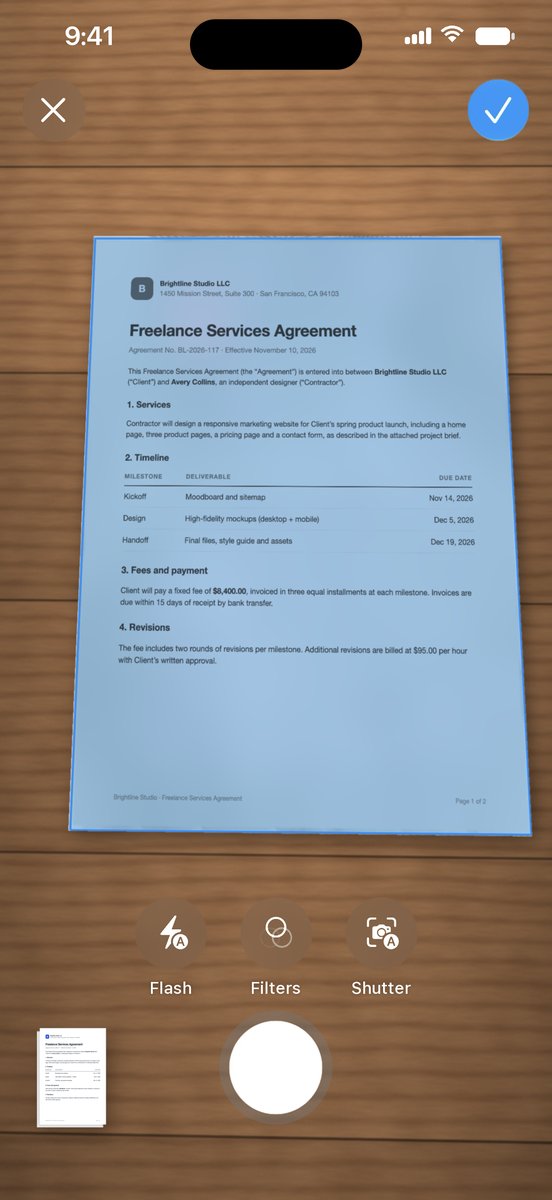
- Capture the pages
The camera finds the page and captures it when it is sharp. Turn the page and keep going for the next one.
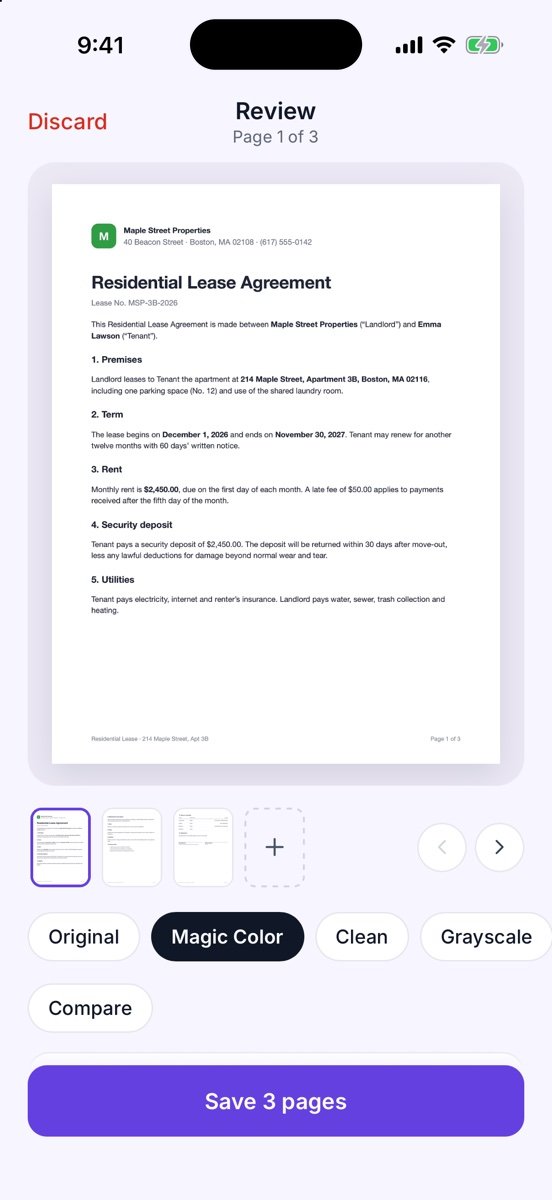
- Clean up in Review
Pick a filter — Original, Magic Color, Clean, Grayscale, B&W, Whiteboard or Sharpen. Tap Compare to slide between the original and the filter. Crop, Rotate, Retake or Delete any page, and tap + in the page strip to add more.
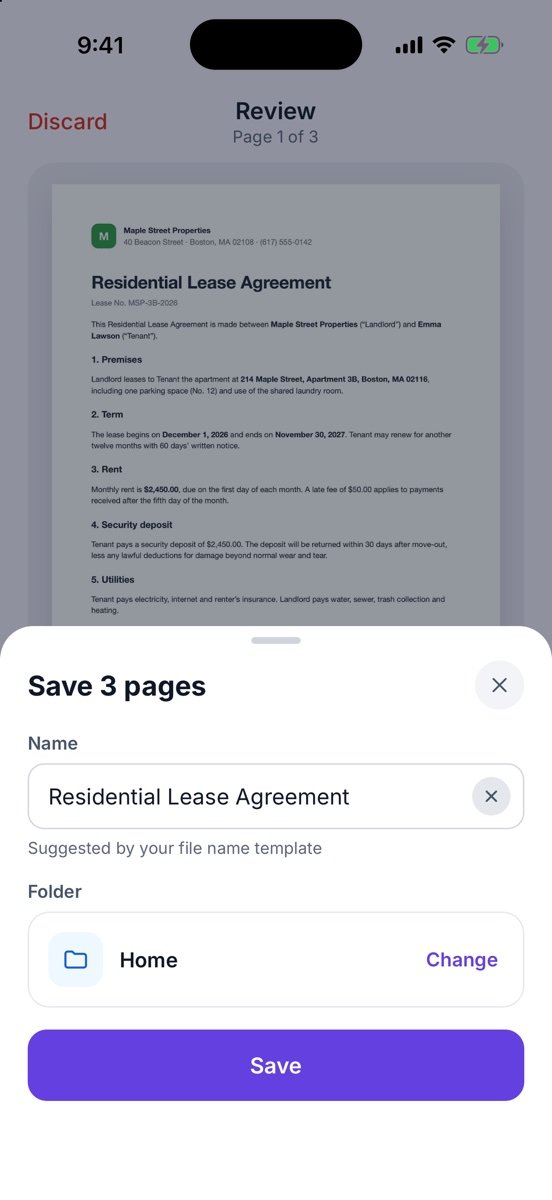
- Save
Tap Save 3 pages. Check the Name (it can be suggested by your file name template), tap Change to pick a folder — or create a New folder… — and tap Save.
- Done
The document opens. Text recognition runs in the background, on your phone, so the pages become searchable a few seconds later.
More screens
Tips
- Lay the paper on a dark, plain surface — edges are found faster.
- On iPhone one camera session takes up to 24 pages. For longer documents, tap + in Review to keep scanning.
- Already have photos or a PDF? Use From Photos or Import PDF at the bottom of the Scan screen.
See it in a real situation: Job application asks for one PDF? Combine diplomas, certificates and references.