 Zency Scan
- Open Search
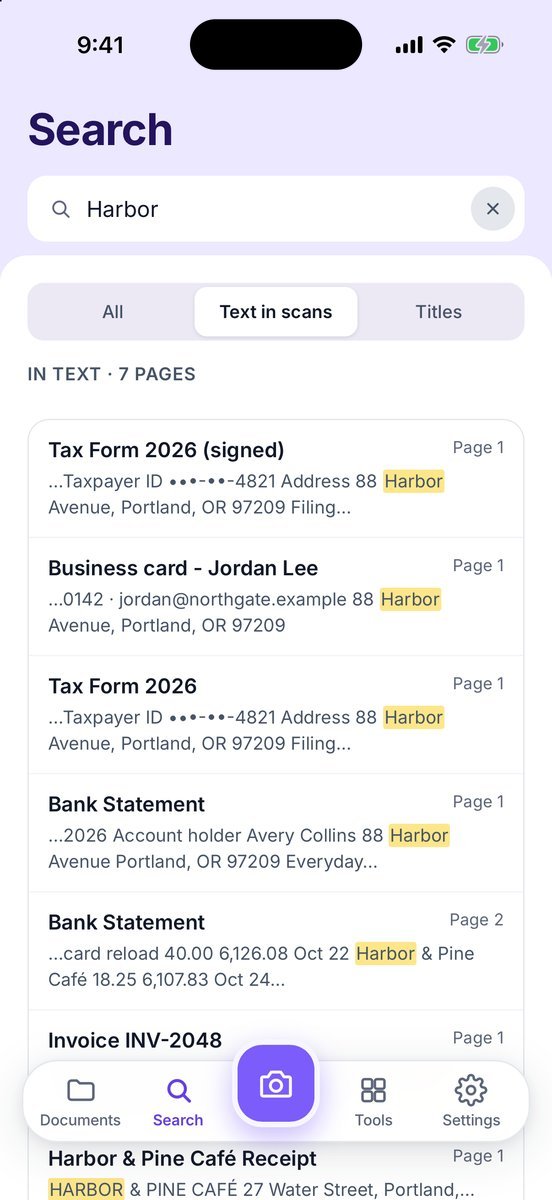
Tap Search and type in Names and text in your scans — a name, an invoice number, a street.
- Filter the results
All, Text in scans or Titles. Text matches show a highlighted snippet and the page number.
- Open a match
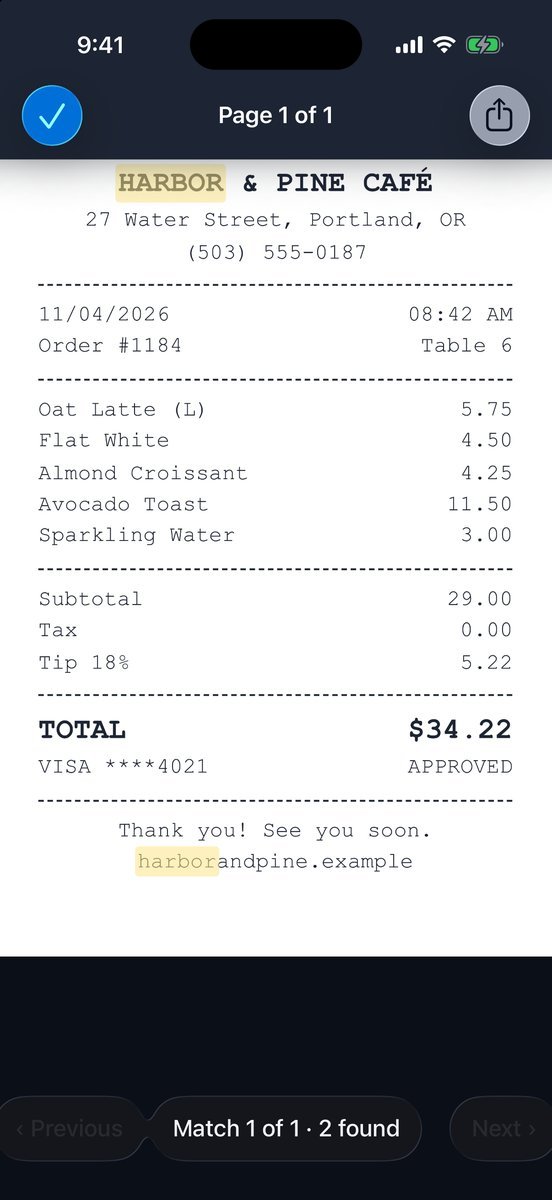
Tap a result. The page opens with every match highlighted.
- Jump between matches
‹ Previous and Next › move through the pages that match. Match 1 of 2 · 3 found means: first of two matching pages, three matches on this page.
More screens
Tips
- Recognition finishes a few seconds after you save; long documents may take a little longer.
- Handwriting is not recognized.
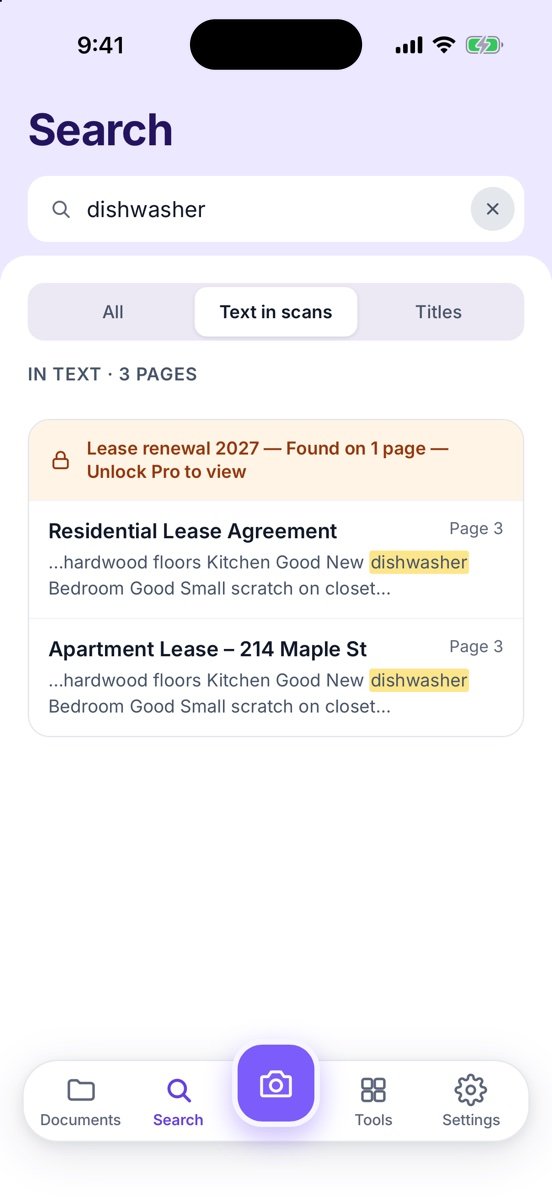
Free or Pro? Search is free and always tells you where a word was found. For pages added after your first 20, you see Found on 1 page — Unlock Pro to view; opening those matches needs Lifetime Pro ($7.99 once).
See it in a real situation: Students: turn whiteboards, handouts and notes into searchable PDFs.