 Zency Scan
Students: turn whiteboards, handouts and notes into searchable PDFs
Searchable PDFs with on-device OCR: snap the whiteboard before it's erased, keep every handout in one PDF per course, and find any formula or definition in seconds before the exam — all on your phone.
Use Whiteboard mode for the board and Document mode for handouts, save them into one folder per course, and let on-device text recognition make every page searchable. Before the exam, search a term across all your scans, copy the paragraph you need, or export a chapter to Word to make your own summary.
The problem with photos of the board
Most students already take photos of the whiteboard. Then they sit in the camera roll between selfies and memes, crooked, with glare across the most important line — and impossible to find the night before the exam.
Scanning instead of photographing fixes three things at once: the board is straightened and cleaned up, it lands in the right course folder, and every printed word on it becomes searchable.
Step 1 — Capture the board before it's erased
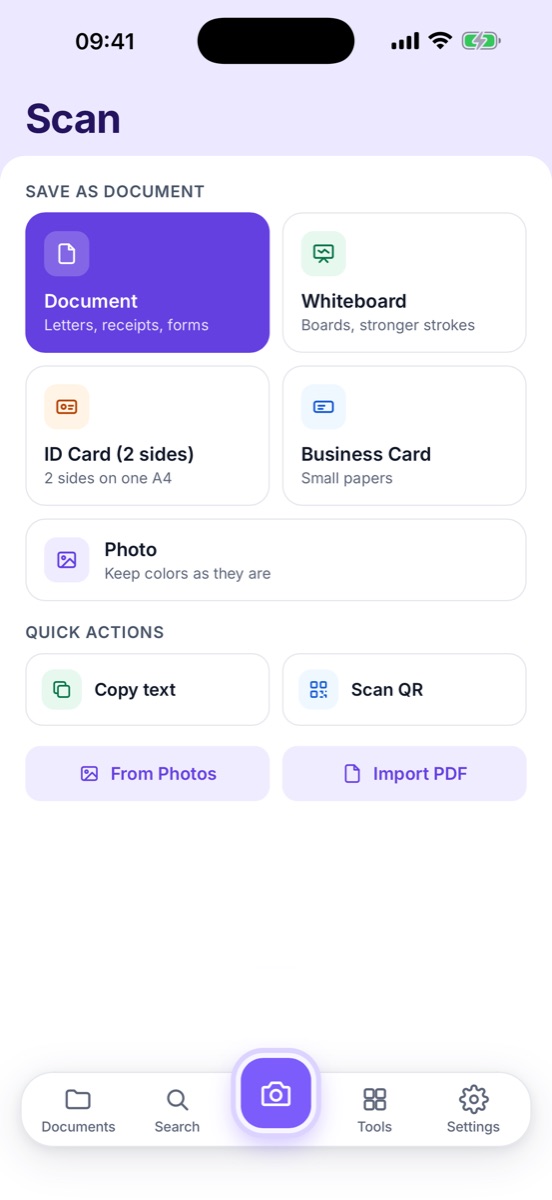
Pick Whiteboard mode on the Scan screen. It straightens the board, cuts the glare and strengthens faint marker strokes. Stand as square to the board as you can; if it is wide, scan it in two halves. It all works offline, so a weak lecture-hall Wi-Fi doesn't matter.
Step 2 — One folder per course
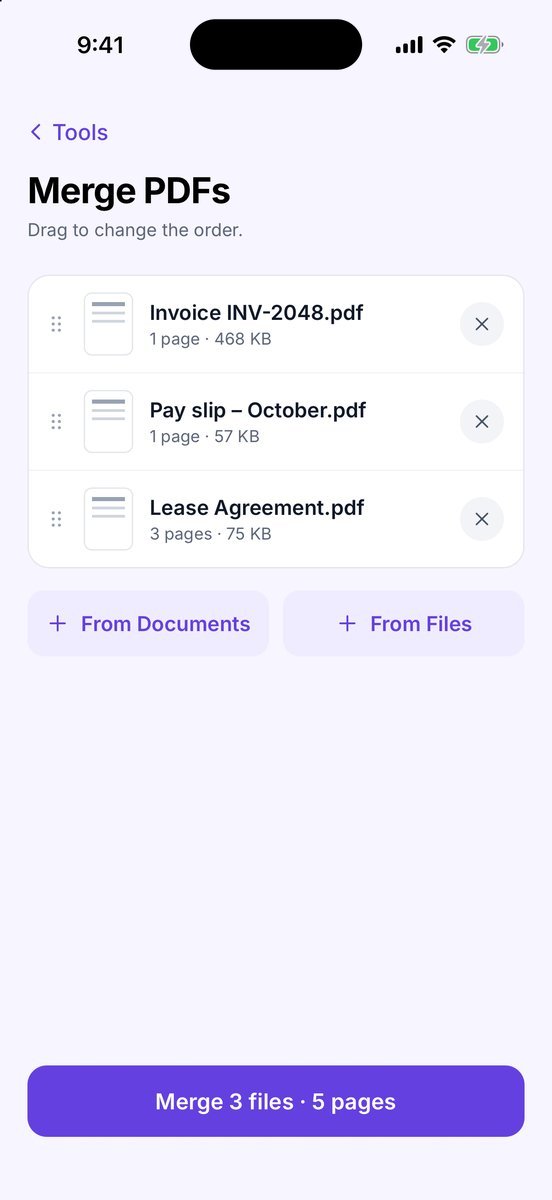
Create a folder for each course and save every board, handout and worksheet there. Once a week, merge that week's scans into one PDF — Biology — Week 6 — so revision is a handful of files, not hundreds.
| Material | Mode | Tip |
|---|---|---|
| Whiteboard / blackboard | Whiteboard | Scan right after class, before it's erased |
| Printed handouts | Document | Clean or B&W filter keeps files small |
| Textbook pages | Document | Flatten the spine with one hand |
| Diagrams, lab results | Photo | Keeps colors as they are |
Step 3 — Search instead of scrolling
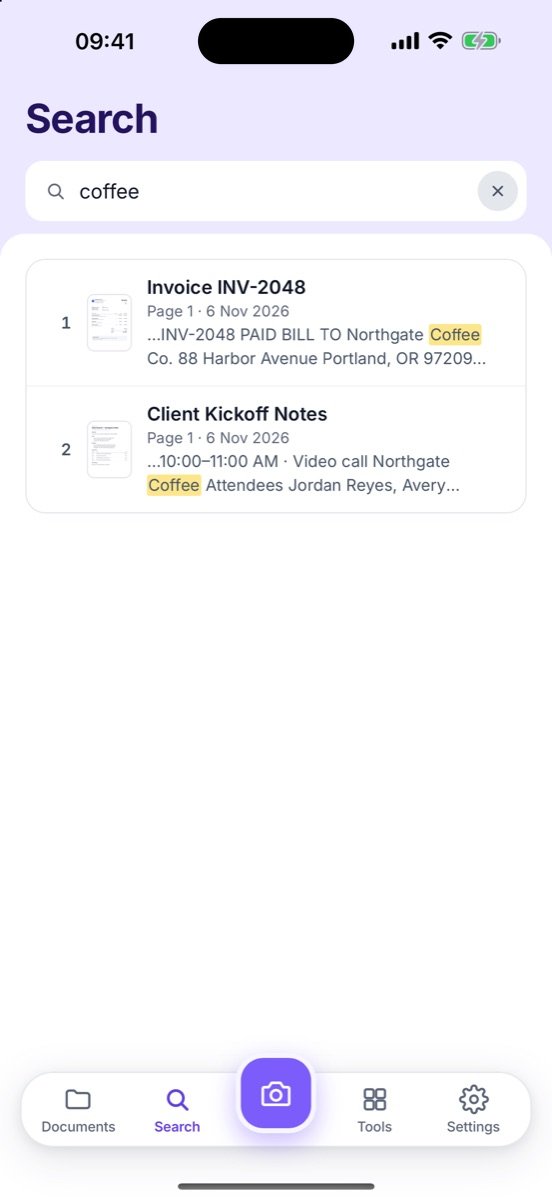
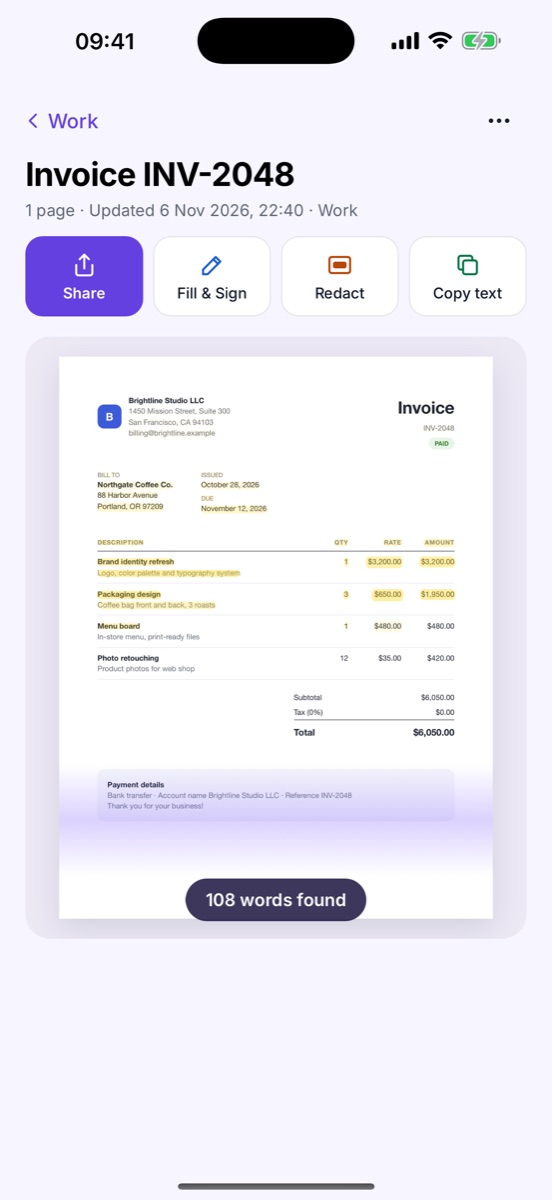
Every page is read on your phone a few seconds after you save it. The night before the exam, search for “mitosis” or “Fourier” and jump straight to every board and handout that mentions it.
Step 4 — Copy, quote and summarize
Need a definition in your notes app? Copy text from the page, or select just the sentence you need. For a full chapter, export it to Word and rewrite it in your own words — one of the best ways to actually remember it.
Study habits that make scanning pay off
- Scan the same day. Handouts get lost in bags; boards get erased.
- Name by topic, not date. “Week 6 — Cell division” is easier to scan by eye than “Nov 6”.
- Share smart. Sending notes to a study group? Export one PDF under 5 MB rather than 20 photos.
- Back up before exams. Export a backup of your library before the term ends or before you change phones.
Common questions
Can it read my handwriting?
Not yet — text recognition works on printed and typed text, and on clear whiteboard writing it often catches headings. Handwritten notes are still saved as clean scans you can read and share.
Is it OK to photograph the whiteboard in class?
Usually yes for your own study, but ask your teacher if you are unsure, and don't share class materials publicly without permission.
Does it work without Wi-Fi in a lecture hall?
Yes. Scanning and text recognition run entirely on your phone.
- Choose a scan mode — Document, Whiteboard, ID Card, Business Card and Photo.
- Search inside your scans — Find any word on any page, even in photos of paper.
- Copy text & Live Text — Copy a paragraph, tap a phone number, address or date.
- Export to Word — Turn a scan into an editable .docx.
- Merge PDFs — Combine several PDFs or scans into one file.