 Zency Scan
- Open Tools
Tap Tools in the tab bar at the bottom of the app.
- Tap Add password
It is in the Pro group — called More tools once you have Pro. A sheet asks where the file is: From Documents (your scans in Zency Scan) or From Files (a PDF on your phone — from email, iCloud Drive, Google Drive or Downloads).
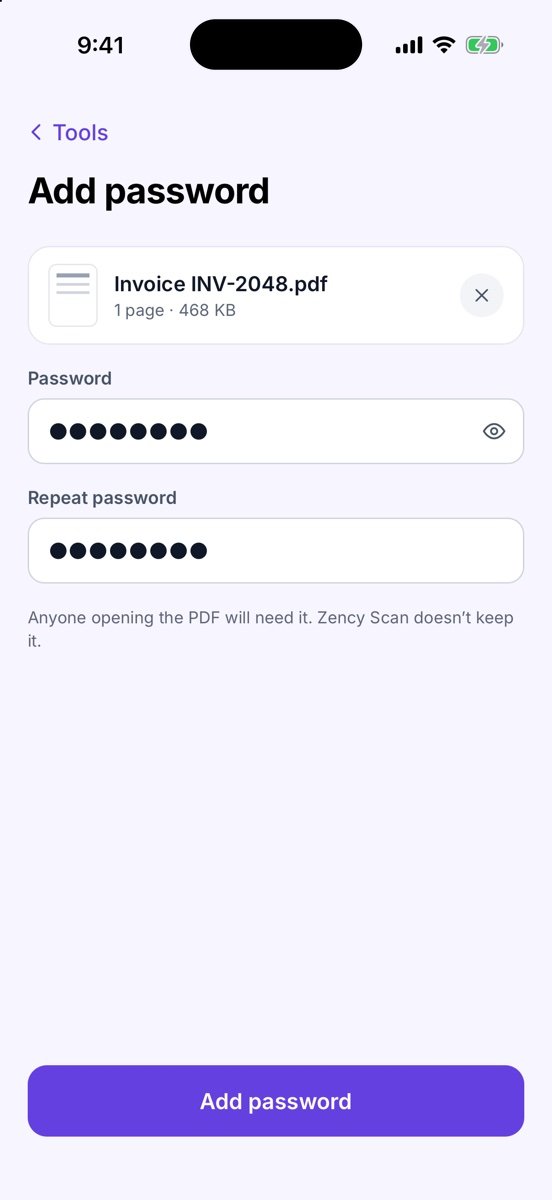
- Type the password twice
Fill in Password and Repeat password. The eye icon shows what you typed; Passwords don’t match. means they differ.
- Add it
Tap Add password.
- Share or save the result
You see Password added. Tap Share to send it, or Save to Files to keep the locked copy. The original file is never changed.
Tips
- Anyone opening the PDF will need the password, and Zency Scan doesn't keep it — store it somewhere safe.
- Send the password separately, not in the same email as the PDF.
- You can also add a password while sharing: Share → Password.
Free or Pro? This is a Pro tool. It is included while you add your first 20 pages, so you can try it on a real document; after that it needs Lifetime Pro ($7.99 once, no subscription).
See it in a real situation: Freelancers: sign and return a contract without a printer.