 Zency Scan
Freelancers: sign and return a contract without a printer
A client sends a contract at 6 pm and wants it back tonight. How freelancers sign, protect and file contracts and invoices from a phone — no printer, no laptop, no subscription.
Open the contract in Fill & Sign, type your name and the date, initial each page and draw your signature. Save it as a signed copy, add a password if it contains rates or bank details, and send it. Then set up a one-tap workflow for invoices and receipts so paperwork stops eating your evenings.
The 6 pm contract
It is the most common freelance paperwork moment: a client confirms the project, sends a PDF and asks for it back “today if possible”. You are not at your desk, there is no printer anyway, and installing a signing app with a free trial that turns into a subscription is the last thing you want.
All you need is the PDF on your phone and five minutes.
Step 1 — Fill in the contract with Fill & Sign
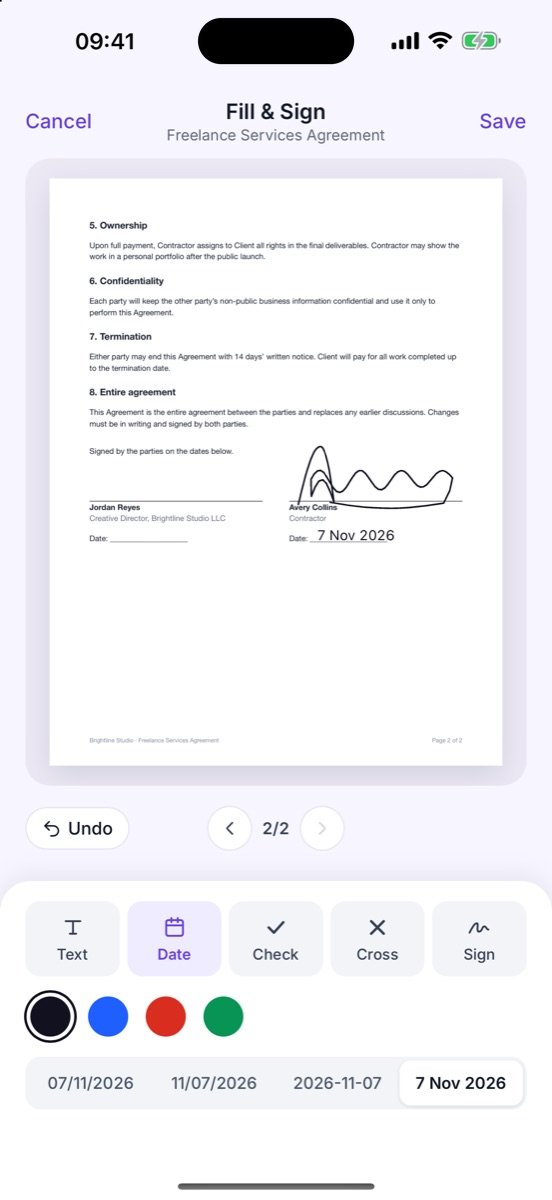
Open the PDF from your email with Zency Scan and tap Fill & Sign. Use Text for your name, company and address, Date for the signing date in the format the contract uses, and Check or Cross for any option boxes.
Step 2 — Add your initials and signature
Many contracts ask for initials on every page. Type them with Text or draw them, page by page. For the signature, draw it once and tap Use signature: it is saved on your phone (never uploaded) and ready for the next contract.
Step 3 — Password-protect and send the signed PDF
Contracts often include your day rate, your bank details and your home address. Before sending, add a password to the PDF and text the password to the client separately. Saving the signed version creates a new (signed) copy, so the clean original stays in your library too.
Sharing a copy with someone who doesn't need your bank details — an agency, a co-worker? Redact the account number and address first; the cover is burned into a new copy. And if the client's email rejects large attachments, share with File size → Under 2 MB or compress the PDF.
Step 4 — Automate invoices and receipts
The contract is the exciting paperwork. Invoices, receipts and expense slips are the paperwork that piles up. Two settings change that:
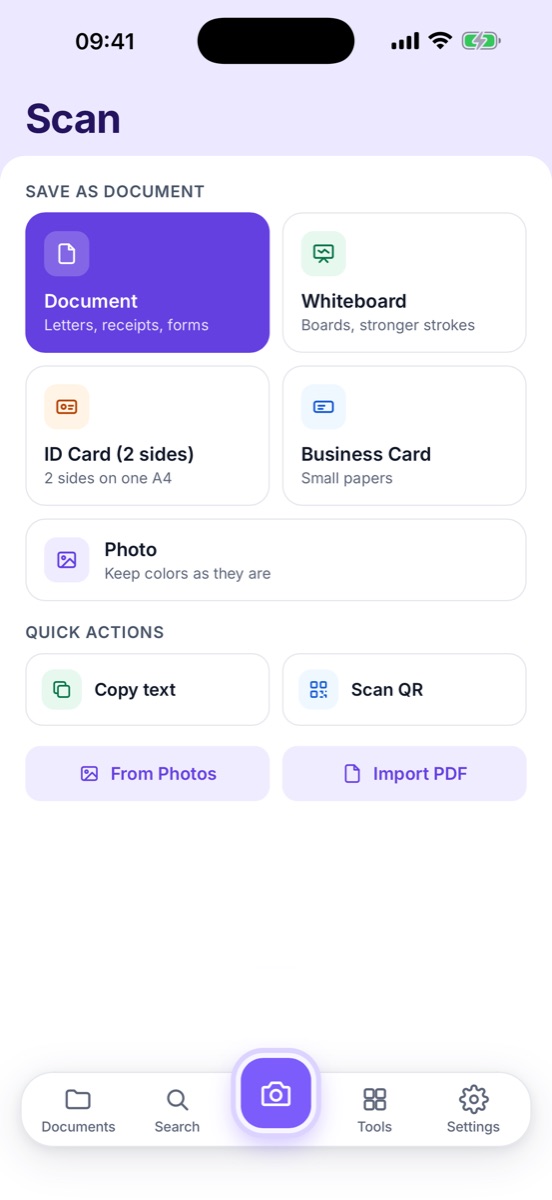
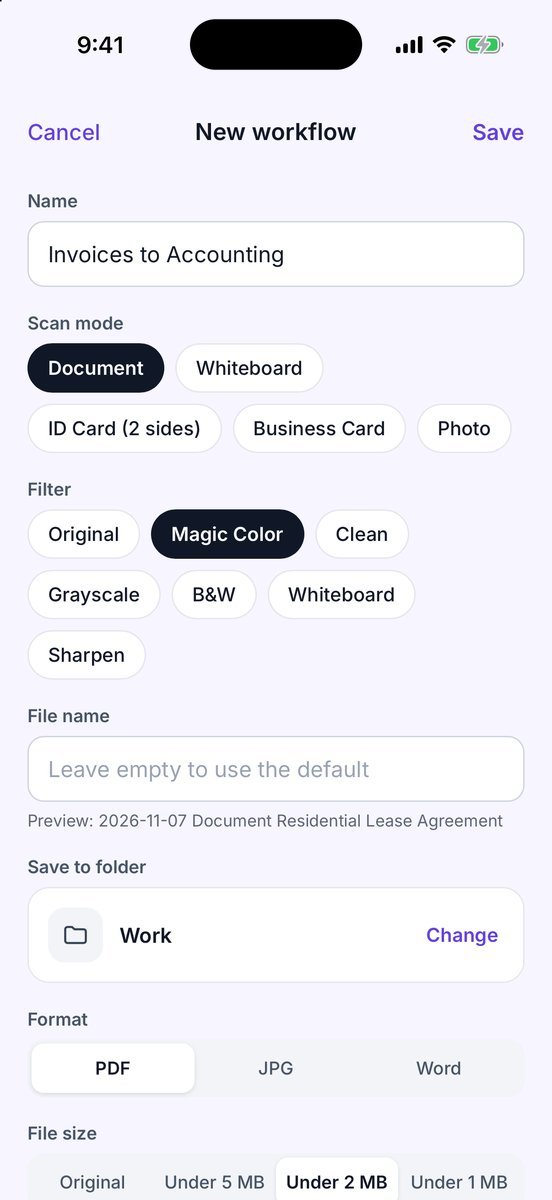
- Automatic names — new scans are named from the date and the first line of text, e.g. 2026-11-06 Document Brightline Studio LLC. No more Scan 37.
- One-tap workflows — create “Receipts → Accountant”: Document mode, Clean filter, saved to the Receipts folder as a PDF under 2 MB, then straight to your mail app. You scan, tap Save, and the email is ready.
A folder system that survives tax season
| Folder | What goes in | When |
|---|---|---|
| Contracts | Signed contracts and NDAs, one per client | The day you sign |
| Invoices | Every invoice you send | When you send it |
| Receipts | Equipment, software, travel | Same day — paper receipts fade |
| Tax | Statements and forms for your accountant | As they arrive |
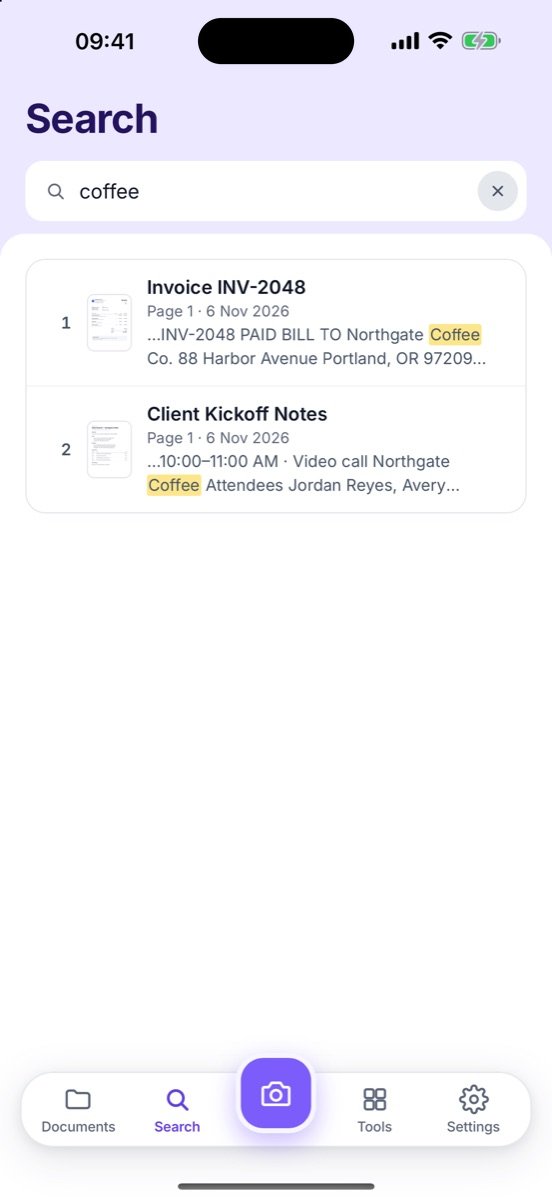
Because every page is searchable, you don't have to file perfectly: searching a client's name or an invoice number finds it inside the scans.
Checklist before you hit send
- Every signature line and initial box filled
- Date in the contract's format
- Password added if it contains rates or bank details
- The signed copy saved in Contracts
Common questions
Is a signature drawn on a phone legally binding?
For many everyday freelance contracts, a handwritten-style e-signature is accepted. Some documents need a certificate-based digital signature or a wet signature — if the contract or your client asks for a specific method, follow it. This is general information, not legal advice.
How do I initial every page?
Use the Text tool to type your initials on each page, or draw them with the signature tool. Both are placed exactly where you drop them.
Should I password-protect a contract?
If it contains rates, bank details or personal data, yes. Send the password through a different channel than the PDF, such as a text message.
- Fill & Sign — Add text, dates, check marks and your signature.
- Add a password — Lock a PDF so only people with the password can open it.
- Redact — Black out or blur account numbers, addresses and IDs.
- One-tap workflows — Scan, name, file and send in a single tap.
- Name scans automatically — Files named from the date, mode and the first line of text.