 Zency Scan
- Open the form
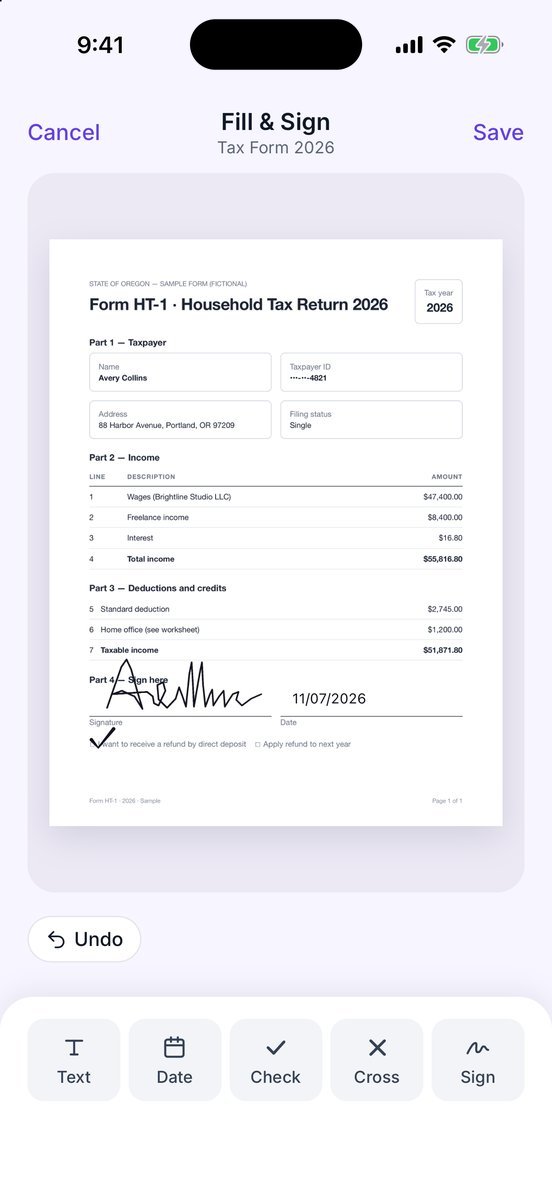
Open a scanned form and tap Fill & Sign. For a PDF from email, go to Tools → Fill & Sign → From Files.
- Add text
Tap Text, type, then tap Insert. Drag it onto the line; the corner handle resizes it.
- Dates and boxes
Date adds today's date — pick the color and a format such as 07/11/2026, 2026-11-07 or 7 Nov 2026. Check and Cross tick boxes.
- Sign
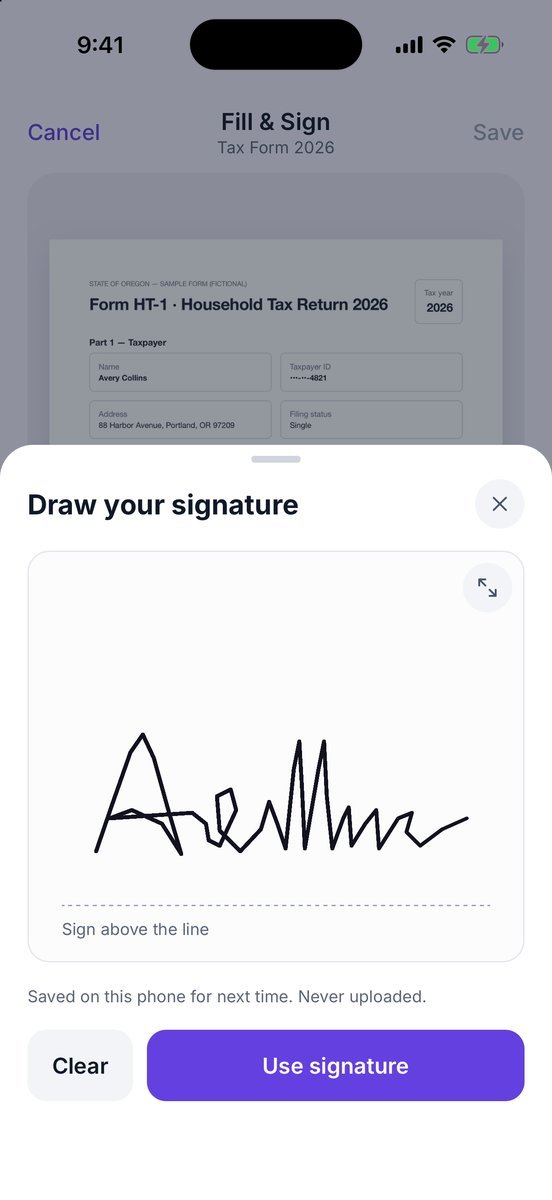
Tap Sign, draw in Draw your signature and tap Use signature. It is saved on this phone for next time — never uploaded. Redraw signature changes it.
- Save and send
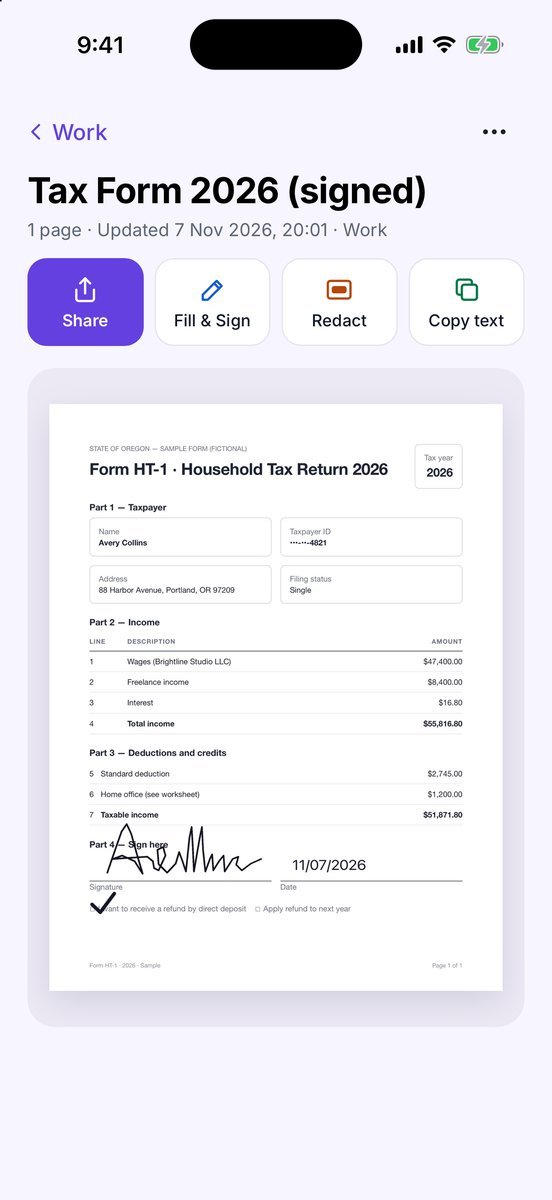
Tap Save. A new document such as Tax Form 2026 (signed) is created in the same folder and opens; tap Share to send it. The original stays as it was.
More screens
Tips
- Select an item to move it, or use Undo and Remove.
- This is a handwritten-style e-signature, not a certificate-based digital signature. If a PDF is already digitally signed, you are warned first because that signature won't survive.
- Text you add is searchable afterwards, like the rest of the page.
Free or Pro? This is a Pro tool. It is included while you add your first 20 pages, so you can try it on a real document; after that it needs Lifetime Pro ($7.99 once, no subscription).
See it in a real situation: Freelancers: sign and return a contract without a printer.