 Zency Scan
Job application asks for one PDF? Combine diplomas, certificates and references
When the application form allows one attachment, here is how to combine your CV, diplomas, certificates and references into one clean, searchable PDF that fits the upload limit.
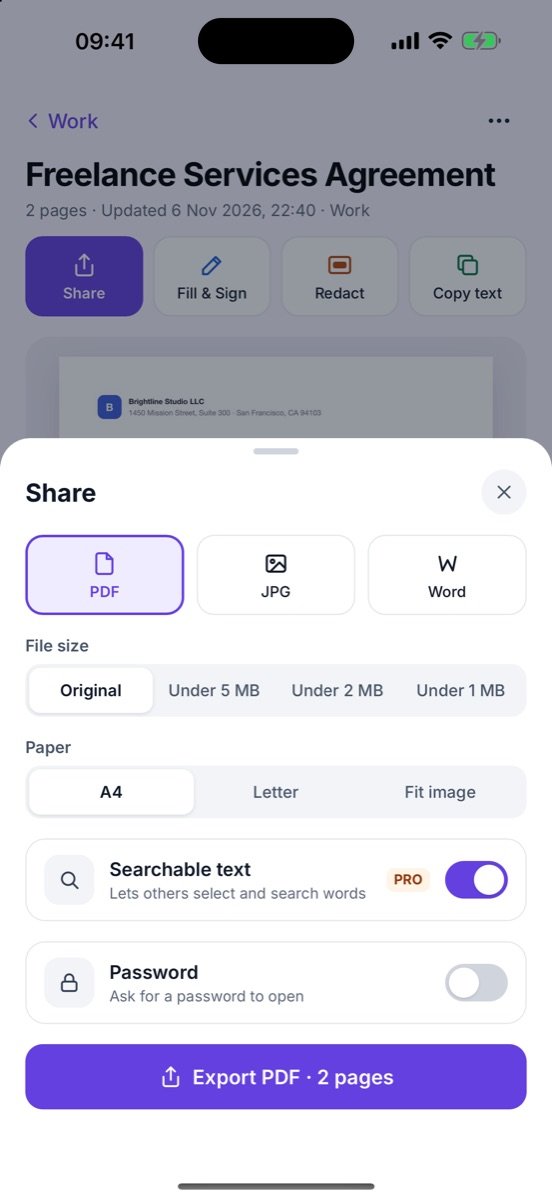
Scan diplomas and certificates in Document mode, import your CV as a PDF, merge everything into one file in the order the employer lists, and export it with searchable text and a target size such as Under 2 MB, then check the final size before you upload. Name the file with your name and the role.
“Upload one file (PDF, max 2 MB)”
It is the most frustrating line on an application form. You have a CV, a diploma, two certificates and a reference letter — and one upload box. Send only the CV and the rest is missing; send photos and they are too big, crooked and unreadable.
Here is how to turn it into one tidy PDF in about ten minutes.
Step 1 — Scan the paper originals properly
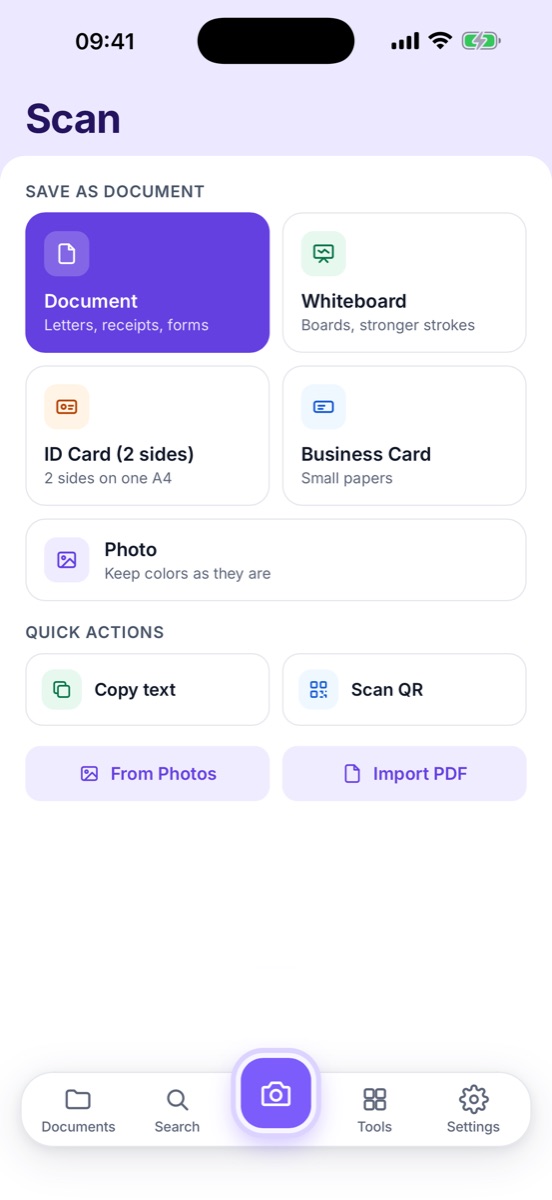
Use Document mode for diplomas, certificates and signed reference letters. Lay them on a dark, plain surface and choose the Clean filter — it whitens the paper and keeps seals and signatures sharp. For certificates with colored seals, Magic Color keeps the colors.
Step 2 — Put it in the order they read it
| Order | Document | Note |
|---|---|---|
| 1 | Cover letter (if asked) | Import your own PDF |
| 2 | CV / résumé | Keep the text version, not a scan |
| 3 | Highest degree | Diploma page; transcript only if requested |
| 4 | Certificates | Most relevant to the role first |
| 5 | References | Signed letters, newest first |
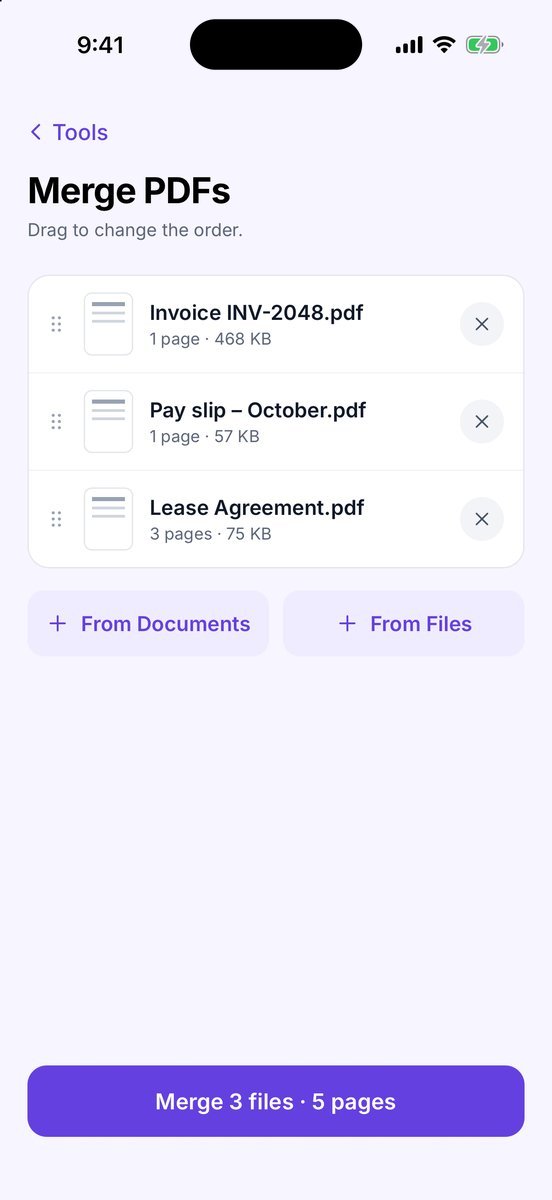
Use Merge PDFs, add the scans and your CV, and drag them into this order. Remove blank backs with Reorder & delete pages.
Step 3 — Make it readable by software, too
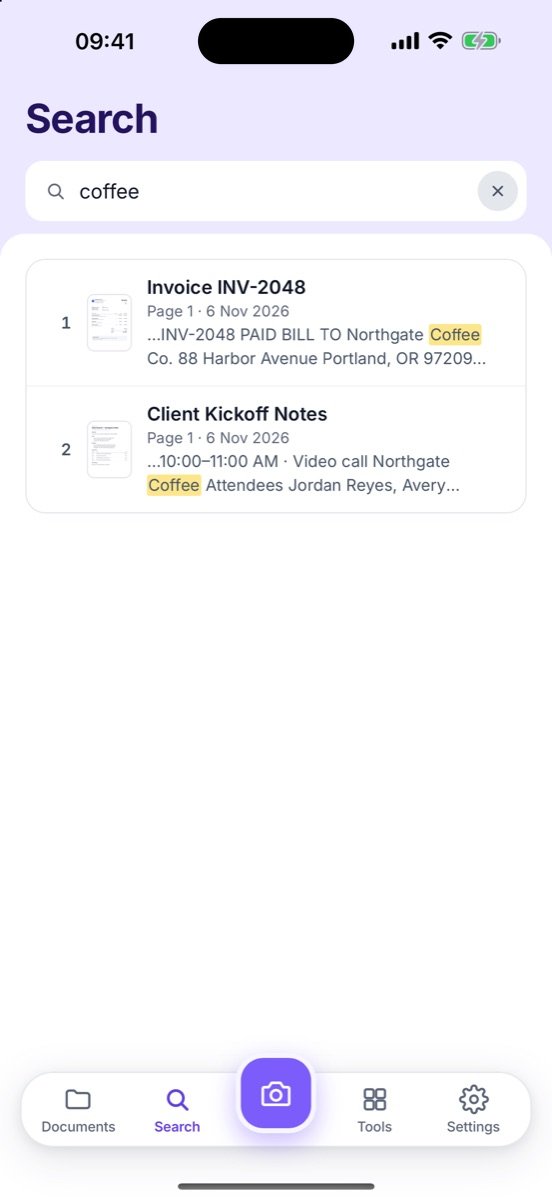
Recruiters often use applicant tracking systems that read the text inside your PDF. A plain scan is an image to them. Turn on Searchable text when you share, or use Searchable PDF on the merged file, so the words on your diploma and certificates can be read.
Step 4 — Fit the upload limit
When you share the PDF, pick File size → Under 2 MB (or the limit on the form). Zency Scan shows the final file size, so you can check it before you upload. Already have a big PDF — a transcript from your university portal, say? Compress PDF shrinks it to Under 5, 2 or 1 MB and shows the size before and after; plain text pages stay sharp with the B&W filter. If a portal wants separate files after all, Split PDF pulls out exactly the pages they need.
Before you click Submit
- Every page upright and in order
- No blank pages, no photos of your desk
- Searchable text on
- Under the size limit, named with your name and the role
- A copy saved in an Applications folder, so you know exactly what you sent
Common questions
Why does searchable text matter for a job application?
Many applicant tracking systems read the text inside your PDF. A scan without a text layer is just an image to them; with searchable text, your name, degrees and skills can be read.
What if the file is still too big?
Pick a smaller size such as Under 1 MB, use the B&W filter for plain text documents, or leave out pages they did not ask for.
Should I include my whole transcript?
Only if it is requested. Otherwise the diploma or certificate page is usually enough — you can send the rest later.
- Scan a document — Capture one or many pages and save them as one PDF.
- Merge PDFs — Combine several PDFs or scans into one file.
- Compress PDF — Make a PDF small enough for email or upload forms.
- Make a searchable PDF — Add a hidden text layer so text can be found and selected.
- Split PDF — Pull out only the pages you need.