 Zency Scan
Free PDF to JPG converter — save every page as an image
Convert each page of a PDF into a JPG, then download one page or all of them in a ZIP. The PDF is rendered in this browser tab and never uploaded.
Your files never leave this device — nothing is uploaded.
How to use it
- Tap Choose a PDF.
- Pick Standard (good for sharing in chats) or High (for printing or zooming in).
- Tap Convert. Download all pages as a ZIP, or tap a single page to save just that image.
Private by design
Most online PDF sites upload your file to their servers to process it. This tool doesn't: the work happens inside your browser with open-source libraries hosted on this site, and the result is created on your device. There is no account, no email and no tracking of your files.
Zency Scan's PDF to images is free and offline, and Save to Photos puts every page in your photo library in one tap.

Common questions
Is this PDF to JPG converter free?
Yes — no sign-up, no watermark, no page limit. Long PDFs at 300 dpi take a while on a phone; Standard quality is much faster.
How do I turn a multi-page PDF into separate JPG files?
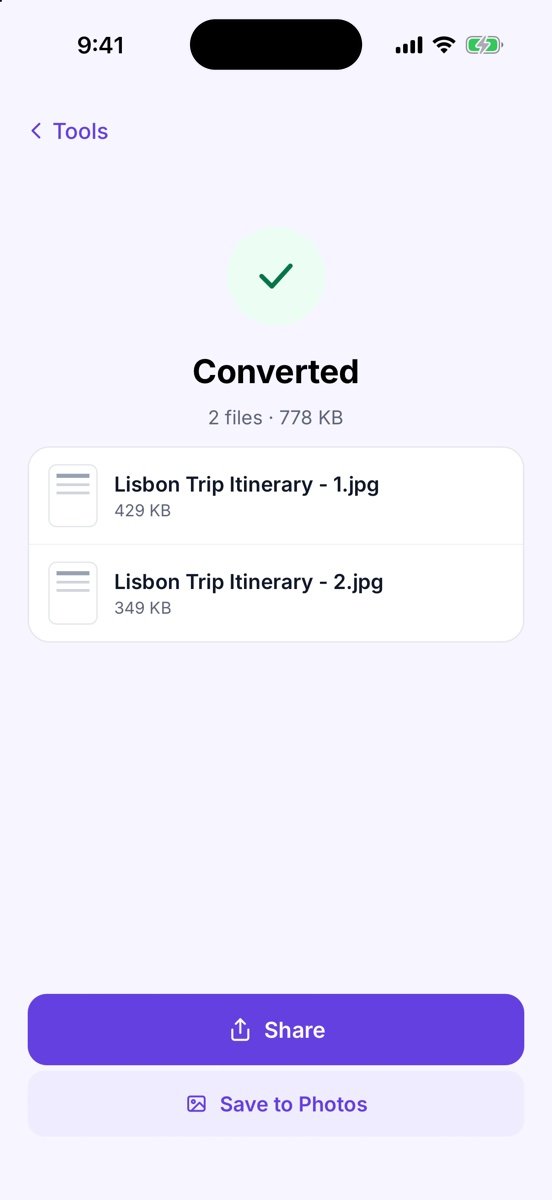
Choose the PDF and tap Convert. Every page becomes its own JPG, named after the PDF with the page number (“Report - 1.jpg”, “Report - 2.jpg”…), and you can download them all in one ZIP.
Is my PDF uploaded?
No. Pages are rendered in your browser with Mozilla's open-source pdf.js. Your file never leaves your device.
How do I get the images into my iPhone's Photos?
Tap a single page, then Share → Save Image. For many pages, download the ZIP, open it in the Files app (it unzips into a folder), select the images and Share → Save Images. The Zency Scan app saves every page to Photos in one tap.
Can I convert a password-protected PDF?
Not in the browser tool — remove the password first. The Zency Scan app asks for the password and converts it.
Can I convert a PDF to JPG at 600 dpi?
Yes, on a computer: choose Print · 600 dpi for print-quality images. The option is hidden on phones, where browsers limit image size — use 300 dpi there. 600 dpi files are about four times larger than 300 dpi.
- How to convert a PDF to JPG on iPhone or Android — every way to do it on iPhone and Android.
- PDF to images in the Zency Scan app — step by step.
- Merge PDF — Combine several PDFs into one file, in any order.
- JPG to PDF — Merge photos and screenshots into one PDF.
- ID card to PDF — Both sides of an ID card on one printable page.