 Zency Scan
How to convert a PDF to JPG on iPhone or Android
Save PDF pages as JPG images on iPhone or Android for free — without screenshots or uploading the file. Three ways, from a browser tool to one-tap Save to Photos.
Screenshots work for one page but lose sharpness. For proper images, open our free PDF to JPG tool in any browser — it converts every page at 150, 300 or 600 dpi without uploading the file — or use PDF to images in Zency Scan, which saves every page straight to your photo library.
When you need a JPG instead of a PDF
Some places simply don't take PDFs: profile and document uploads that only accept images, chat apps where a PDF opens as an attachment instead of a picture, slides, or printing a single page at a photo kiosk. Converting the page to a JPG solves all of these.
Your options compared
| Method | Quality | All pages at once | Uploads? |
|---|---|---|---|
| Screenshot of the page | Screen resolution, with borders | No | No |
| PDF to JPG tool (browser) | 150 or 300 dpi | Yes, as a ZIP | No |
| Zency Scan — PDF to images | Full page | Yes, Save to Photos | No |
| Typical PDF websites | Varies | Yes | Usually yes |
Quick and rough: a screenshot
Open the PDF, zoom so the page fills the screen, and take a screenshot. It's fine for one page you only need to glance at. For anything someone will read or print, the text will be soft and you'll have to crop out the toolbar. On iPhone, the Shortcuts app also has a “Make Image from PDF Page” action if you like building shortcuts.
Any device, no upload: the free PDF to JPG tool
- Open PDF to JPG and tap Choose a PDF.
- Pick Standard (150 dpi) for sharing or High (300 dpi) for printing and zooming.
- Tap Convert. Download all pages as a ZIP, or tap one page to save just that image.
On iPhone, a single page opens as an image — tap Share → Save Image. A ZIP opens in the Files app, which unzips it into a folder. The pages are rendered in your browser with Mozilla's pdf.js; the PDF is never uploaded.
In an app: PDF to images in Zency Scan
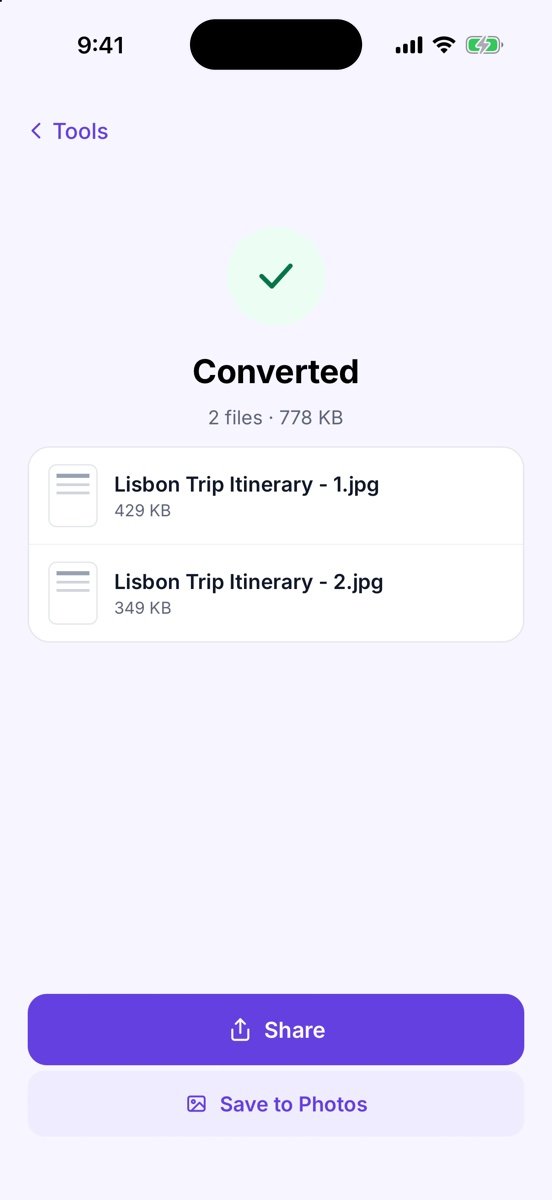
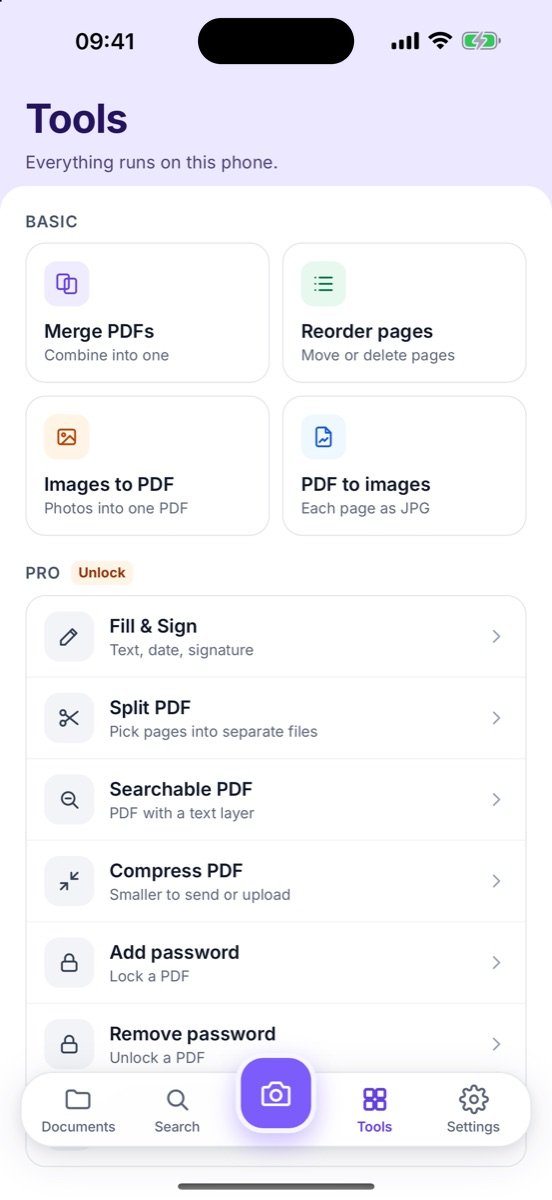
- Tap Tools → PDF to images and choose the PDF From Documents or From Files.
- Tap Convert. You get one JPG per page, named after the document.
- Tap Save to Photos to put them all in your photo library, or Share to send them.
Password-protected PDFs work too: the app asks for the password first. It's free, offline and without a watermark. Only need one page of a scan? Share the document as JPG instead. Step by step.
Tips
- 150 dpi is plenty for phones and chat apps; 300 dpi is the usual print quality.
- Going the other way? Turn photos back into a PDF with JPG to PDF.
- Need the text, not a picture? Images can't be searched or copied from. Zency Scan can copy text from a scan instead.
Common questions
How do I save a PDF as a JPG on iPhone?
Use the free PDF to JPG tool on this site in Safari, then Share → Save Image. Or use PDF to images in Zency Scan and tap Save to Photos for all pages at once.
How do I convert a PDF to JPG on Android?
Open the free PDF to JPG tool in Chrome and download the pages, or use PDF to images in Zency Scan. Most Android phones don't include a PDF to JPG converter.
Will the JPG be as sharp as the PDF?
At 300 dpi, printed text looks the same as the PDF. Screenshots are lower quality because they're limited to your screen's resolution.
Is my PDF uploaded when I convert it?
Not with the tool on this site or with Zency Scan — both convert on your device. Many other PDF websites do upload the file.
- PDF to images — Save each page of a PDF as a JPG.
- Share & export — Send a scan as PDF, JPG or Word.
- Images to PDF — Turn photos or screenshots into one PDF.