 Zency Scan
How to merge PDFs on your phone — without uploading them
Combine several PDFs into one on iPhone or Android for free: the Files app, a no-upload browser tool, or a scanner app — and why most PDF websites upload your files.
On iPhone, select the PDFs in the Files app and tap ⋯ → Create PDF. Most Android phones don't come with a PDF merge tool, so use our free Merge PDF tool — it works in any browser and never uploads the files — or the free Merge PDFs tool in Zency Scan, which also lets you reorder files and handles password-protected PDFs.
Why “without uploading” matters
The PDFs people merge are rarely boring: payslips for a rental application, diplomas for a job portal, medical letters for an insurance claim. Most free “merge PDF” websites upload the files to their servers, process them there and keep them for a while. Usually that's fine — but you're trusting a company you've never heard of with documents you wouldn't post online.
The alternatives below all merge on your own device.
Your options compared
| Method | Works on | Reorder files | Password-protected PDFs | Uploads? |
|---|---|---|---|---|
| Files app → Create PDF | iPhone, iPad | By order in the folder | No | No |
| Merge PDF tool (browser) | Any device | Yes | Remove the password first | No |
| Zency Scan — Merge PDFs | iPhone, Android | Yes, drag | Yes, asks for it | No |
| Typical PDF websites | Any device | Yes | Varies | Yes |
On iPhone: the Files app
- Put the PDFs in the same folder in the Files app (from Mail, tap the attachment → Share → Save to Files).
- Tap Select, pick the PDFs, then tap ⋯ (More) → Create PDF.
The new file follows the order of the files in the folder — rename them “1 …”, “2 …” first if the order matters. There's no way to drop a single page here.
On any phone, no upload: the free Merge PDF tool
- Open Merge PDF and tap Choose PDF files. Pick them from Files, iCloud Drive, Google Drive or Downloads.
- Set the order with ↑ and ↓. The button shows how many files and pages you're joining.
- Tap Merge and download the PDF.
It uses the open-source pdf-lib library in your browser, so it works the same on Android, iPhone and a computer — and your files never leave the device.
In an app: Merge PDFs in Zency Scan
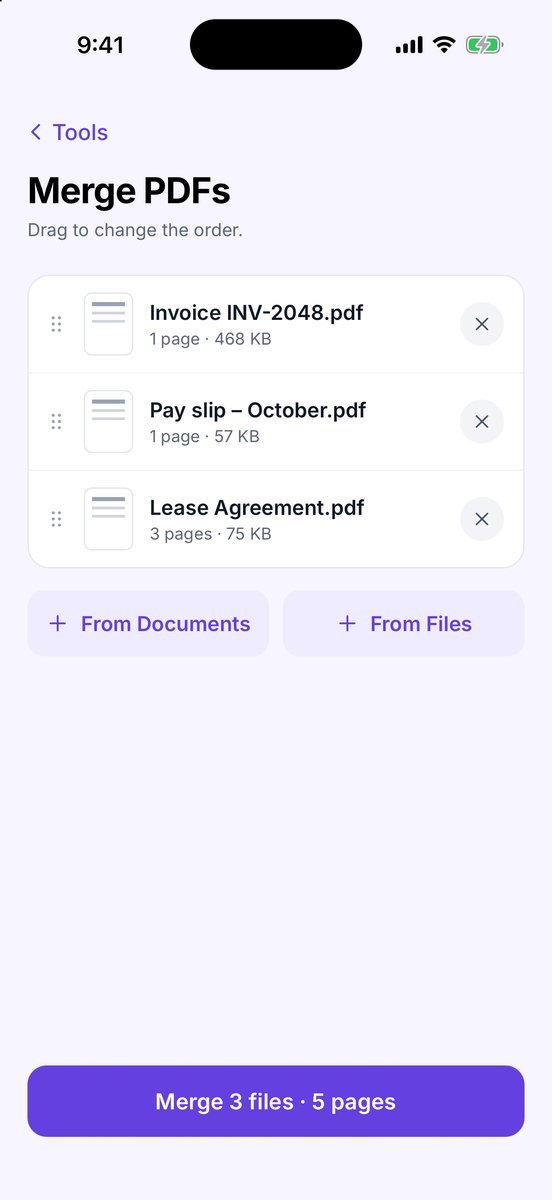
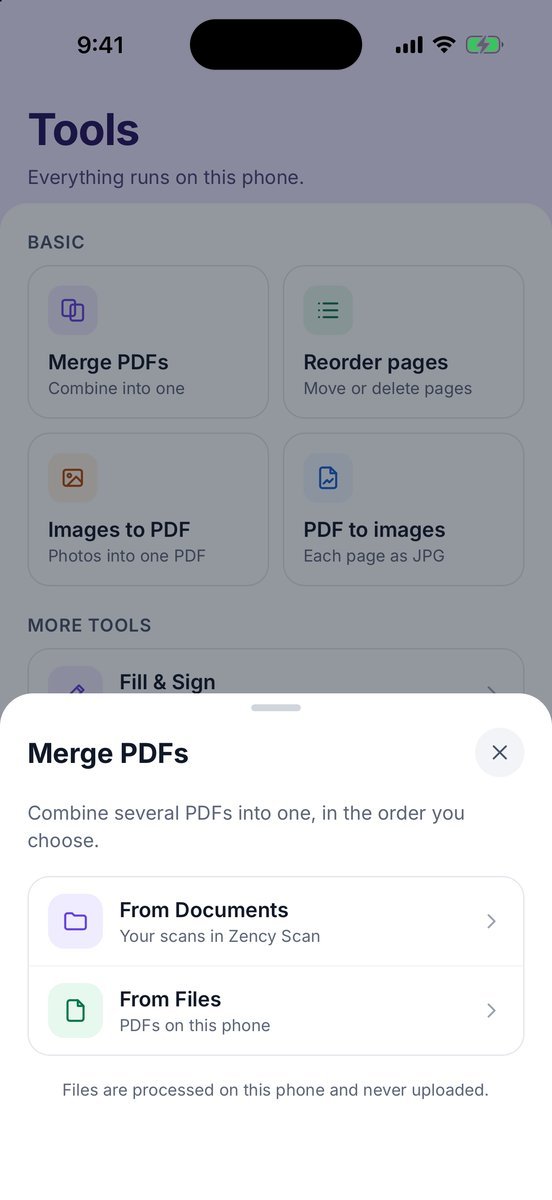
- Tap Tools → Merge PDFs. Pick the first file From Documents (your scans) or From Files (a PDF on your phone).
- Add the rest with + From Documents or + From Files, and drag them into order.
- Tap Merge. Share the result or save it to your documents — the originals are never changed.
If a PDF has a password, the app asks for it and carries on, and you can keep, remove or change the password on the merged file. Merge PDFs is free, offline, with no watermark. Step by step.
Before you send the merged PDF
- Delete blank pages and duplicates — Reorder & delete pages in Zency Scan.
- Check the file size. Merged scans grow fast; many portals accept 2–10 MB. Export with a size cap or use Compress PDF (Pro).
- Digitally signed PDFs (e-signed contracts) lose the signature's validity when merged. Send those separately.
Common questions
Can I merge PDFs on iPhone for free?
Yes. The Files app can do it (Select → ⋯ → Create PDF). For control over the order, use the free Merge PDF tool on this site in Safari, or Merge PDFs in Zency Scan.
How do I merge PDFs on Android without an app?
Most Android phones don't include a PDF merge tool (some phone makers' file managers or PDF readers do — check yours first). Otherwise open the free Merge PDF tool on this site in Chrome — it runs in the browser and doesn't upload the files.
Is it safe to merge PDFs online?
It depends on the site. Many upload your files to their servers. The Merge PDF tool here processes files inside your browser and sends nothing anywhere.
Can I merge password-protected PDFs?
In Zency Scan, yes — it asks for the password. In the browser tool, remove the password first.
- Merge PDFs — Combine several PDFs or scans into one file.
- Reorder & delete pages — Move pages or drop the ones you don't need.
- Compress PDF — Make a PDF smaller to send or upload.