 Zency Scan
How to combine photos into one PDF on iPhone or Android
Turn several photos or screenshots into a single PDF for free — with the Files app on iPhone, on Android, in the browser without uploading, or with a scanner app.
On iPhone, select the photos in the Files app and choose Create PDF. On any phone or computer, our free tool to combine images into one PDF does it in the browser without uploading. If the photos are of paper documents, use a scanner app's import — Zency Scan's Images to PDF is free and lets you set the order, A4/Letter pages and a file-size cap.
Which method should you use?
| Method | Works on | Set the order | Page size | Uploads your photos? |
|---|---|---|---|---|
| Files app → Create PDF | iPhone, iPad | By file order in the folder | Photo size | No |
| Print → Save as PDF | iPhone, Android | Selection order | Paper size | No |
| JPG to PDF tool | Any browser | Yes, ↑ ↓ | A4, Letter or photo size | No |
| Zency Scan — Images to PDF | iPhone, Android | Yes, drag | A4, Letter or photo size + size cap | No |
| Typical “JPG to PDF” websites | Any browser | Yes | Varies | Usually yes |
On iPhone: the Files app
- Save the photos to Files first: in Photos, select them, tap Share → Save to Files, and pick a folder.
- Open that folder in the Files app, tap Select (or ⋯ → Select) and pick the photos.
- Tap ⋯ (More) in the corner and choose Create PDF. A new PDF appears in the same folder.
The pages follow the order of the files in the folder, so rename or sort them first if the order matters. Each page is the size of its photo, which looks odd when someone prints it on A4 or Letter.
On iPhone or Android: Print → Save as PDF
Most phones can “print” to a PDF instead of a printer. On iPhone, select the photos in Photos, tap Share → Print, then Share again from the print preview and choose Save to Files. On Android, open the print option from your gallery or Google Photos and pick Save as PDF as the printer. Menus differ between phone makers, and some galleries print one photo at a time.
Any device, no upload: the free JPG to PDF tool
- Open JPG to PDF and tap Choose photos.
- Put them in order with ↑ and ↓, and pick A4, Letter or Fit image.
- Tap Convert and download the PDF.
The PDF is built inside your browser, so it's fine for payslips or IDs. Landscape photos get landscape pages automatically.
Best for document photos: a scanner app
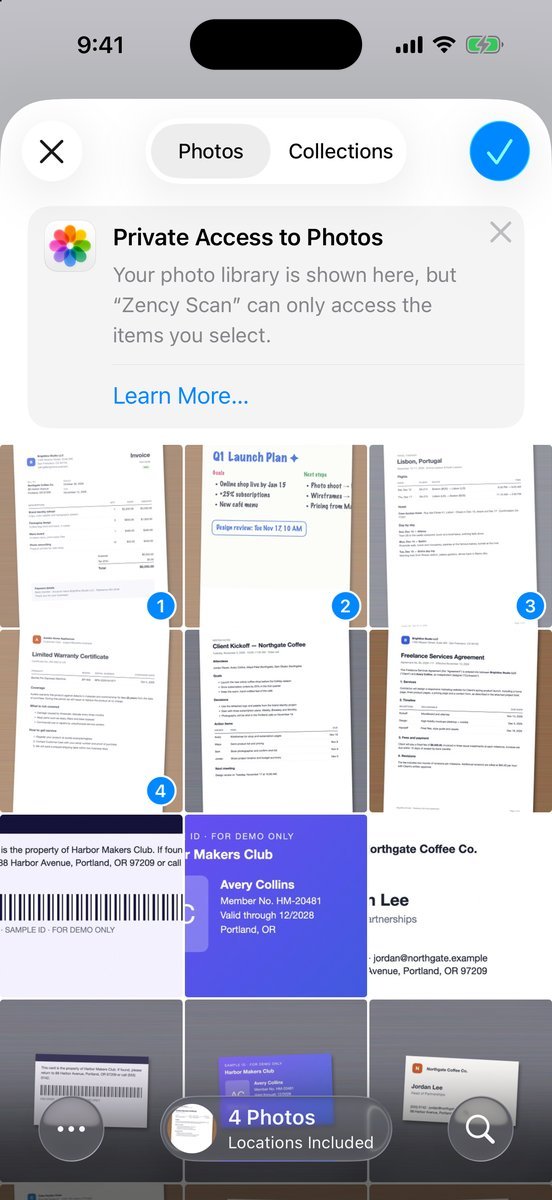
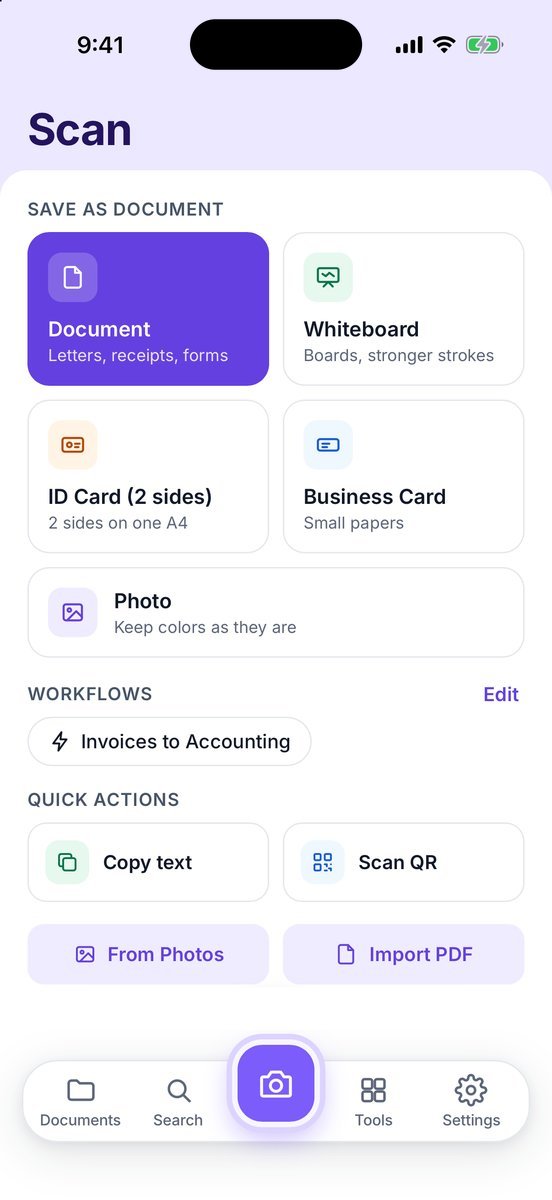
Photos of paper usually have a table, a shadow and a slant in them. In Zency Scan you have two free options:
- Tools → Images to PDF places each photo as it is, with A4/Letter/Fit pages and a file size of Original, Under 5 MB, Under 2 MB or Under 1 MB. Step by step.
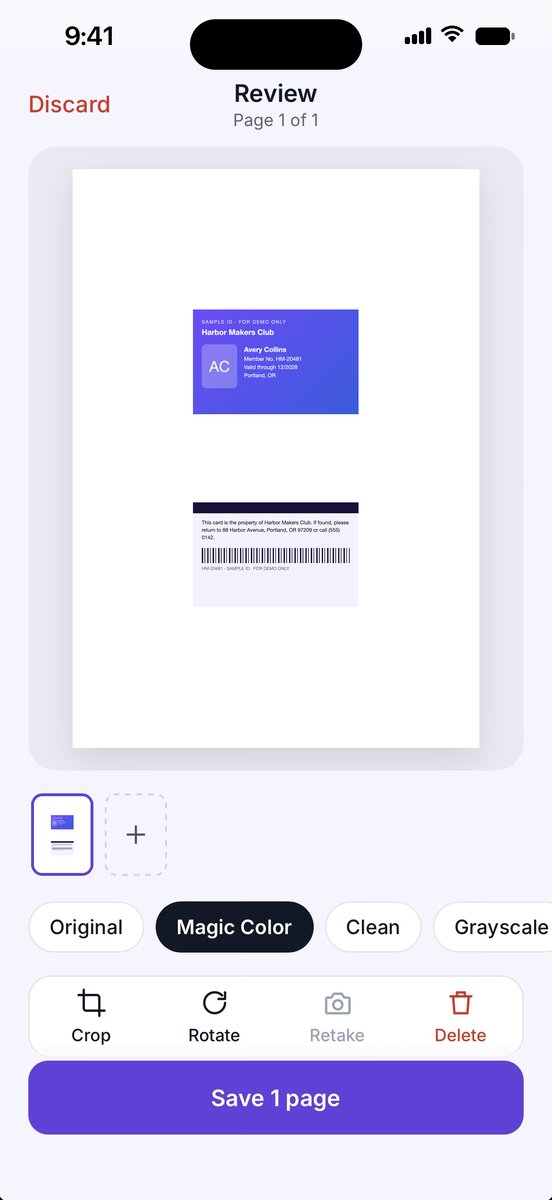
- Scan → From Photos treats the photos like scans: it finds the page edges, straightens them and applies a filter such as Clean or B&W, so the result looks like it came from a flatbed scanner. Step by step.
Both run on your phone, offline, with no watermark.
Tips for a better PDF
- Check the size limit of the form you're uploading to. Phone photos are 3–5 MB each (more on 48 MP cameras); ten of them make a PDF that many portals refuse. The free JPG to PDF tool scales photos down to at most 3000 pixels, and Zency Scan can export Under 2 MB or Under 1 MB.
- Use A4 or Letter when the PDF might be printed — whoever opens it gets normal pages.
- Name the file after what it is (“Alex Rivera — Receipts Oct 2026.pdf”), not “IMG_4821”.
Common questions
Can I combine photos into a PDF on iPhone without an app?
Yes. Save the photos to the Files app, select them and choose ⋯ → Create PDF. You can also use Print → Save to Files, or the free JPG to PDF tool on this site in Safari.
How do I combine photos into one PDF on Android?
Use the print option in your gallery and choose Save as PDF, use the free JPG to PDF tool in Chrome, or a scanner app such as Zency Scan (Tools → Images to PDF).
Can I convert HEIC photos to PDF?
Yes on iPhone: the Files app, Print and Zency Scan all handle HEIC. In the browser tool, HEIC works in Safari; in Chrome, export the photos as JPG first.
How do I make the PDF smaller?
Choose A4 or Letter instead of the photo size, or use a size cap — Zency Scan's Images to PDF can export Under 1 MB or Under 2 MB.
- Images to PDF — Turn photos or screenshots into one PDF.
- Scan a document — Capture one or many pages and save them as one PDF.
- Share & export — Send as PDF or JPG with a size cap.