 Zency Scan
How to scan documents on Android and save them as a PDF
Turn paper into a clean PDF on any Android phone — with Google Drive, your phone's camera, or an offline scanner app that needs no account. Step by step, free.
Most Android phones can scan with the Google Drive app (+ → Scan), but the PDF is saved to your Google Drive account. To keep the PDF on your phone with no account, use an offline scanner app such as Zency Scan: Scan → Document, capture the pages, pick a filter, Save, then Share as PDF — free, with no watermark.
Your options compared
| Method | Multi-page PDF | Where the PDF is saved | Account needed |
|---|---|---|---|
| Google Drive → Scan | Yes | Your Google Drive (cloud) | Google account |
| Your camera app's document mode (some phones) | Varies — often one image per page | Gallery, as images | No |
| Zency Scan | Yes | On your phone; share or save where you like | No |
| JPG to PDF tool (photos you already took) | Yes | Downloads | No |
All of them are free. The real difference is where your documents end up and how clean the result looks.
Method 1 — Google Drive
- Open the Google Drive app and tap + (New), then Scan. On some versions there's a camera icon at the bottom right instead.
- Point the camera at the page. Drive finds the edges; adjust the crop if needed and add more pages with +.
- Tap Save, give the PDF a name and pick a Drive folder.
It's quick and free if you already live in Google Drive. The catch: the PDF is uploaded to your Google account, and to send it you share it from Drive or download it to the phone first.
Method 2 — Your phone's camera (Samsung Galaxy and others)
Some phones, including many Samsung Galaxy models, notice a document in the regular camera and offer to scan it. What you get is usually an image in your gallery, not a PDF, and the feature differs from one phone and Android version to the next. If you have a few of these images, the free combine JPG to PDF tool turns them into one PDF without uploading them.
Method 3 — Zency Scan: offline, no account
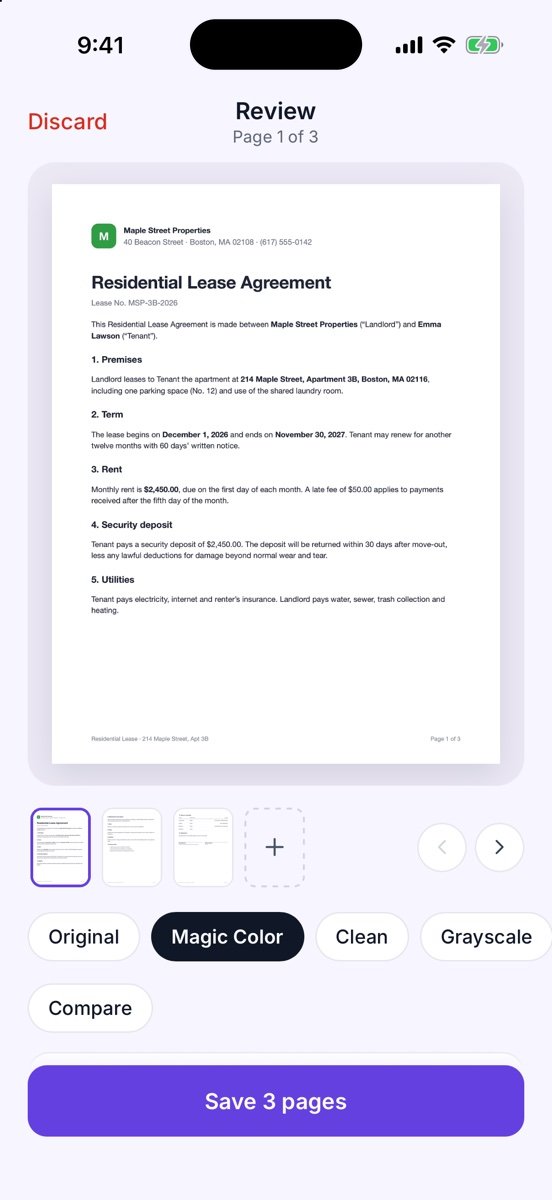
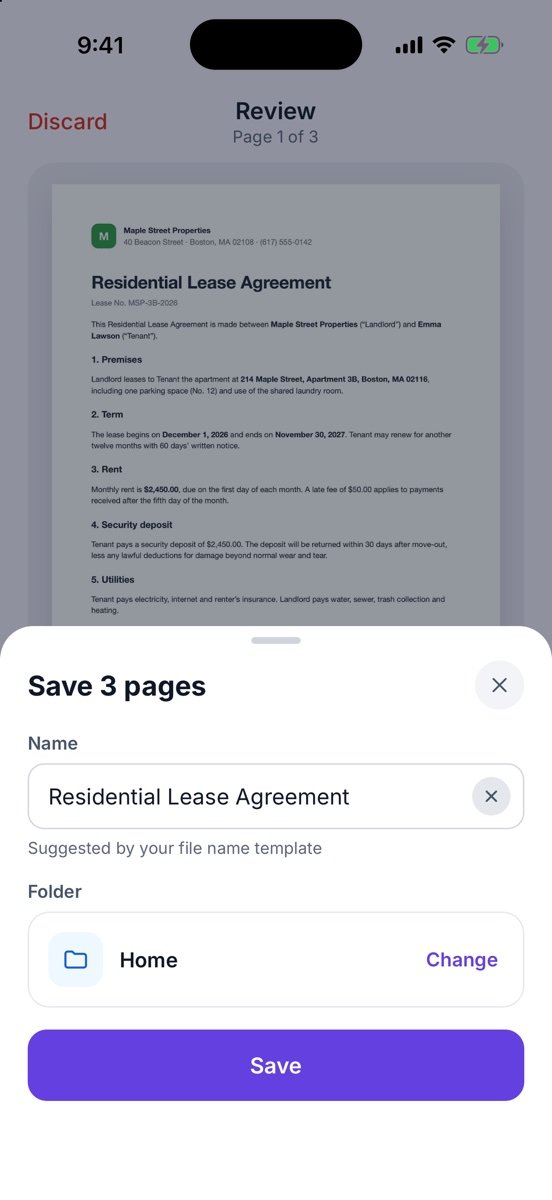
- Tap the round Scan button in the tab bar, then Document.
- Hold the phone over the page. The scanner finds the edges and captures it when it's sharp — turn the page and keep going.
- In Review, pick a filter: Clean or B&W for letters and forms, Magic Color for color documents. Crop, rotate or retake any page.
- Tap Save, check the name and folder, and save.
- Tap Share and choose PDF. Set File size to Under 2 MB or Under 1 MB if an upload form is strict, and Paper to A4 or Letter.
Scanning and PDF export are free with no watermark and no page limit, and nothing is uploaded. Comparing scanner apps first? See CamScanner alternatives without a subscription. On Android, the very first scan may need an internet connection once, so Google Play services can download the scanner module; after that it works offline. Step by step with screenshots: Scan a document.
Tips for a clean scan
- Dark, plain background. White paper on a dark table is found instantly; on a white desk the edges get lost.
- Even light, no flash. Turn so your shadow isn't on the page; flash makes glare on glossy paper.
- Flatten folds under your hand or a book, outside the frame.
- Pick the filter for the job: B&W makes small text crisp and files small; Magic Color keeps stamps and signatures in color.
- Check the size limit of the site you're uploading to before you send a 20-page scan.
Common questions
Does Android have a built-in document scanner?
Not as a separate app on most phones. The Google Drive app has a Scan option, and some phones' camera apps can detect documents. A dedicated scanner app gives you more control over filters, page order and file size.
Can I scan to PDF on Android without a Google account?
Yes. Zency Scan needs no account: scans and PDFs stay on the phone until you share them.
How do I scan several pages into one PDF?
Keep capturing — each page is added to the same document. In Zency Scan you can also tap + in Review to add more pages, reorder them, then save one PDF.
How do I make the scanned PDF smaller?
Use the B&W filter and A4 or Letter paper, and pick a File size cap when you share — Zency Scan can export Under 5 MB, Under 2 MB or Under 1 MB for free.
How do I scan a document on a Samsung Galaxy?
Many Galaxy phones show a Scan button in the regular camera when they detect a document; the exact name and menu depend on the model and One UI version, and the result is usually an image. For a multi-page PDF, use Google Drive's Scan or a scanner app such as Zency Scan, which works the same on Samsung, Pixel and other Android phones and tablets.
- Scan a document — Capture one or many pages and save them as one PDF.
- Choose a scan mode — Document, Whiteboard, ID Card, Business Card and Photo.
- Share & export — Send as PDF or JPG with a size cap.